> ## Documentation Index
> Fetch the complete documentation index at: https://docs.get-ryze.ai/llms.txt
> Use this file to discover all available pages before exploring further.
# Connect to Claude
> Set up the Ryze connector in Claude and verify it works
This connects Ryze to Claude so you can list accounts, pull reports, and make changes from chat. It takes about 30 seconds.
Use **Claude Desktop** for the most reliable connection. The web version (claude.ai) works too, but it can time out on slower connections — if something stalls, switch to Desktop.
## Step 1 — Generate your connection key
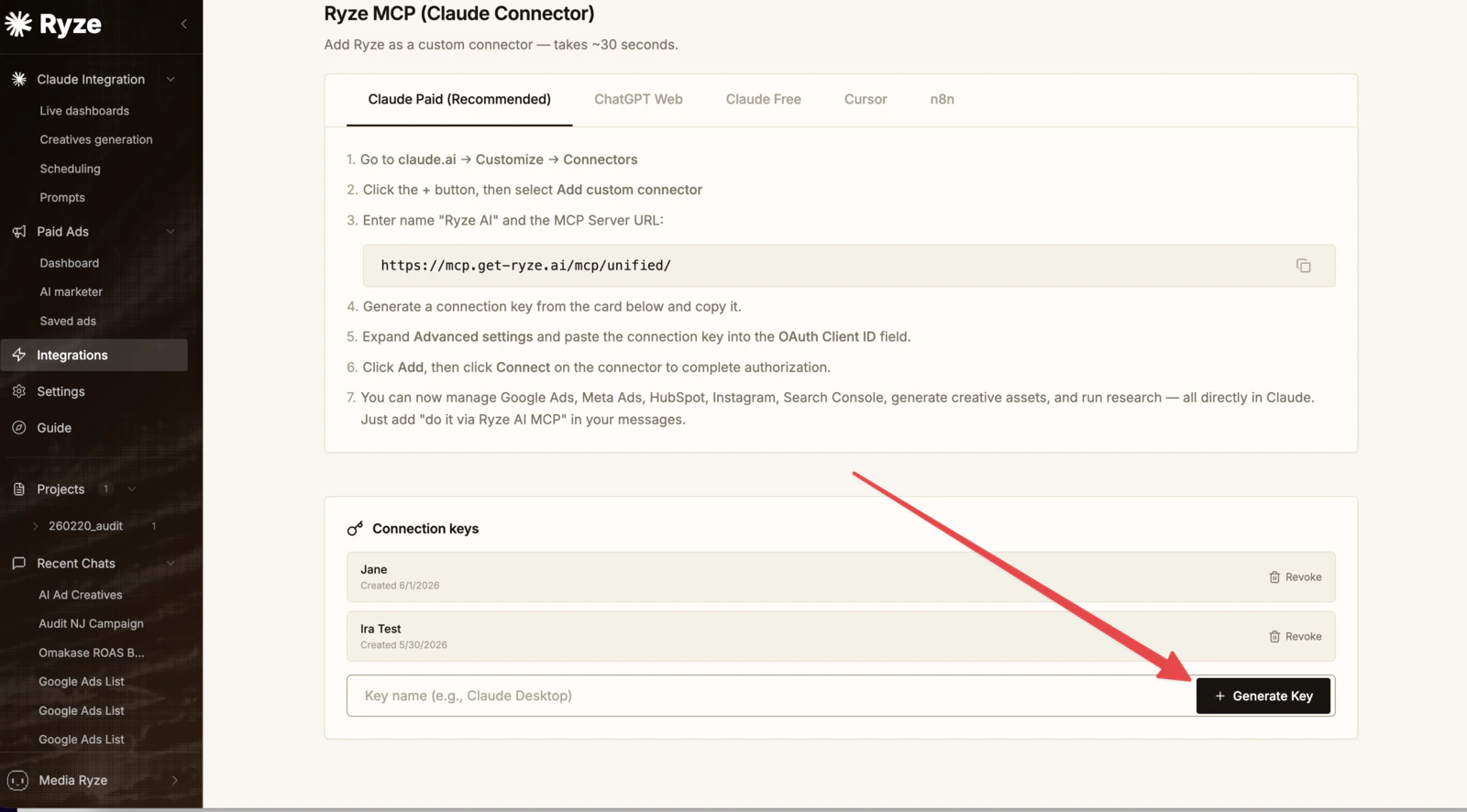
In your Ryze dashboard, open the **Ryze MCP (Claude Connector)** section at [app.get-ryze.ai/integrations](https://app.get-ryze.ai/integrations). Under **Connection keys**, name the key (e.g. "Claude Desktop"), click **Generate Key**, and copy it.
 ## Step 2 — Add the connector in Claude
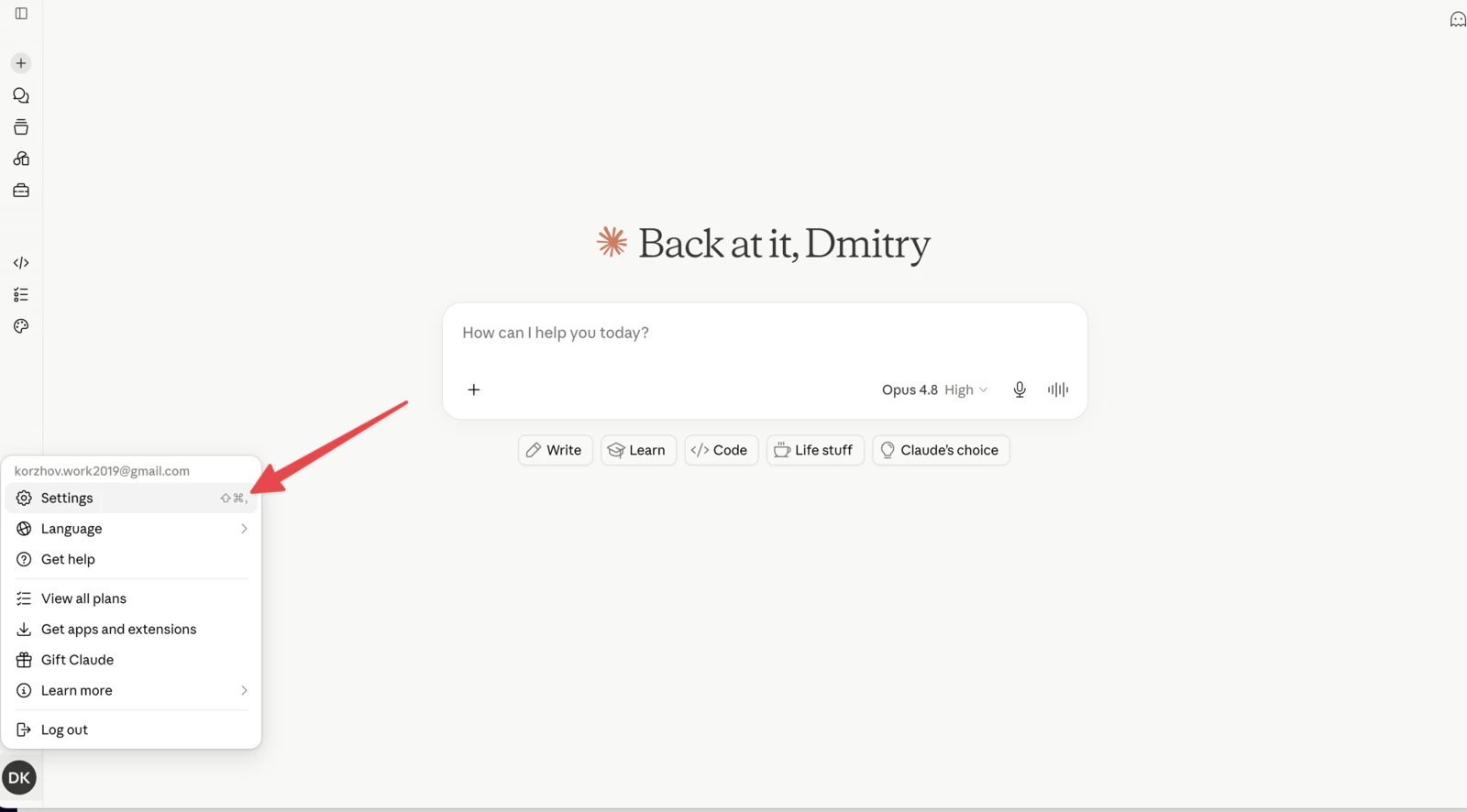
Click your account menu (bottom-left) and choose **Settings**.
## Step 2 — Add the connector in Claude
Click your account menu (bottom-left) and choose **Settings**.
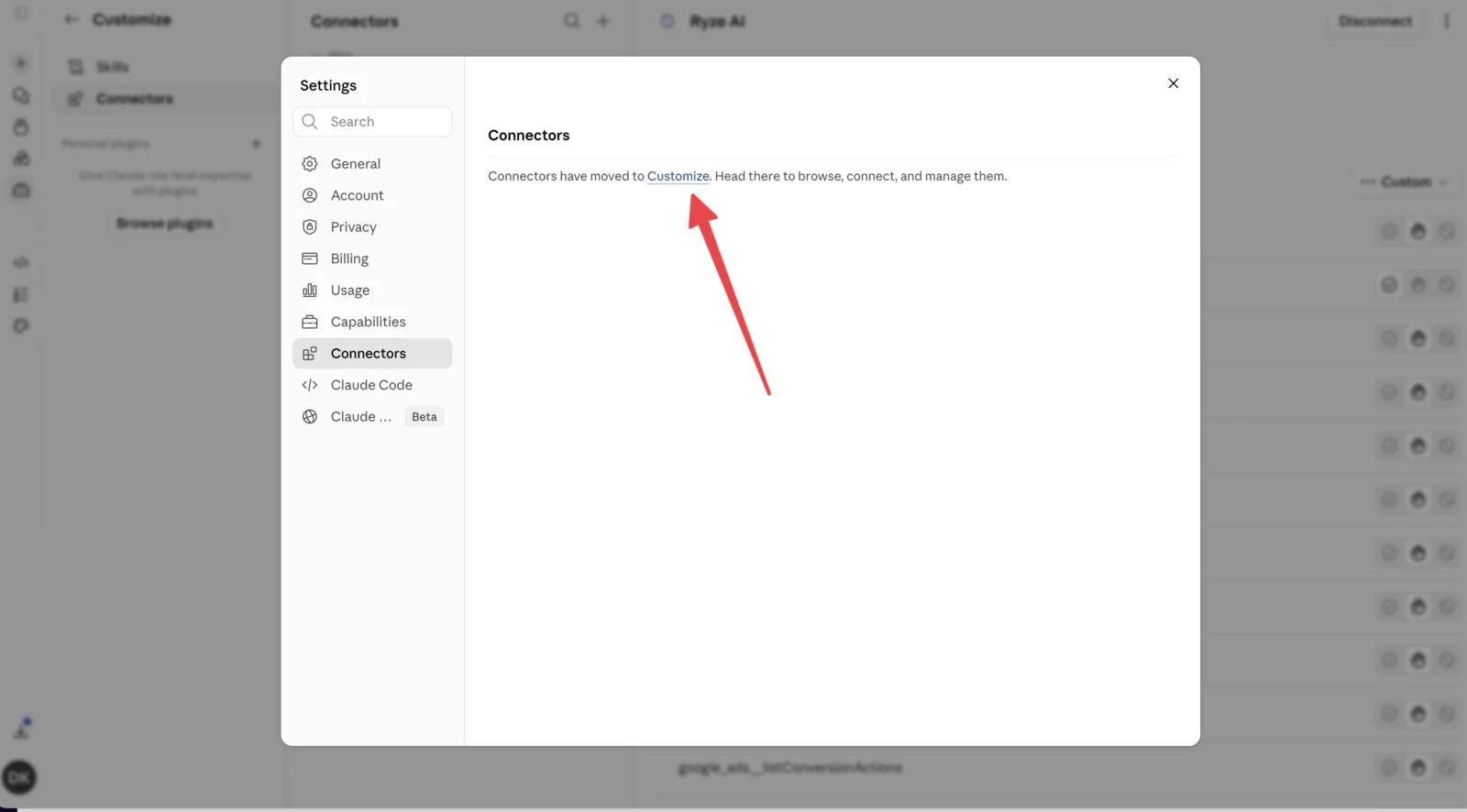
 Open **Connectors**. They now live under **Customize** — click that link.
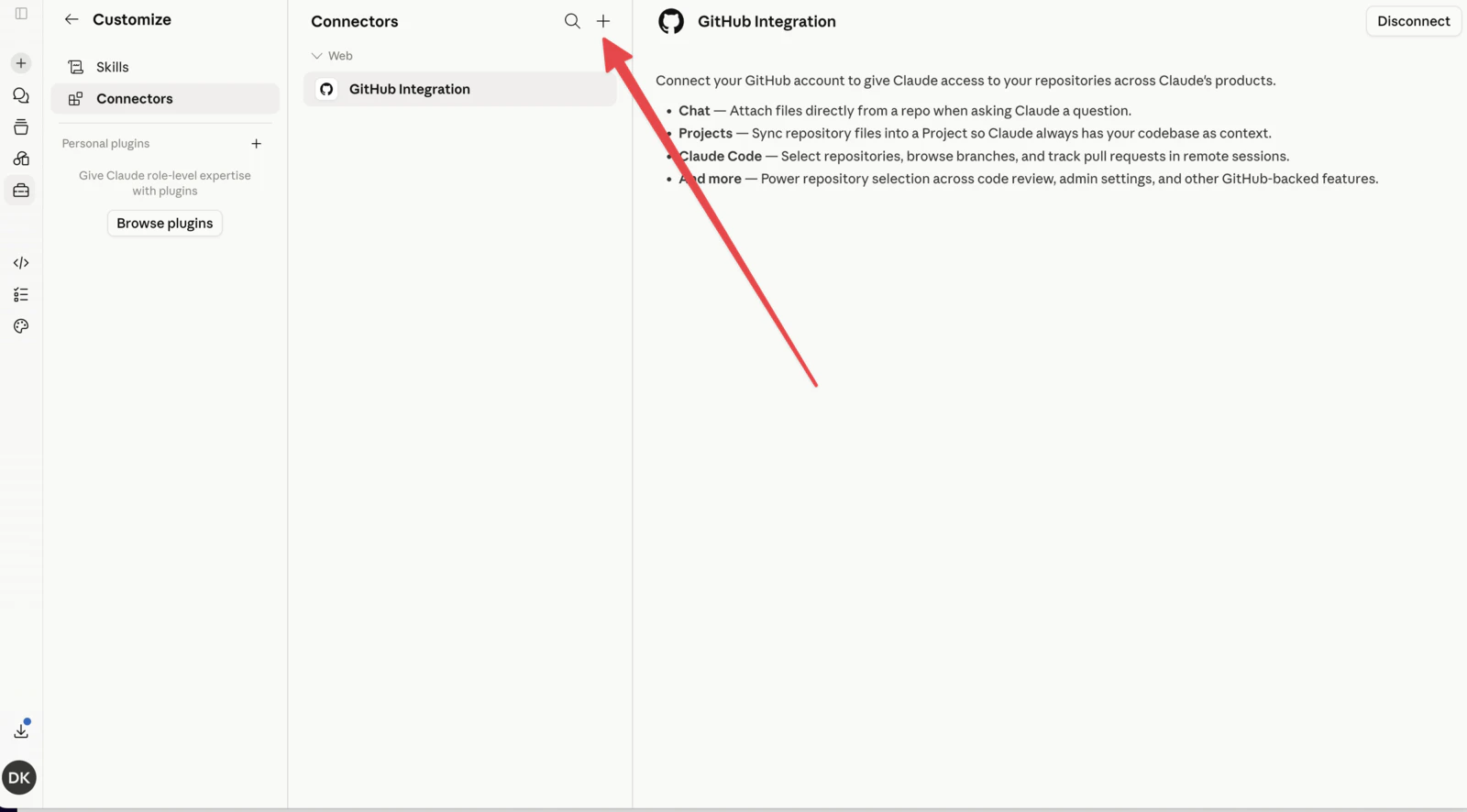
 In **Customize → Connectors**, click the **+** to add one.
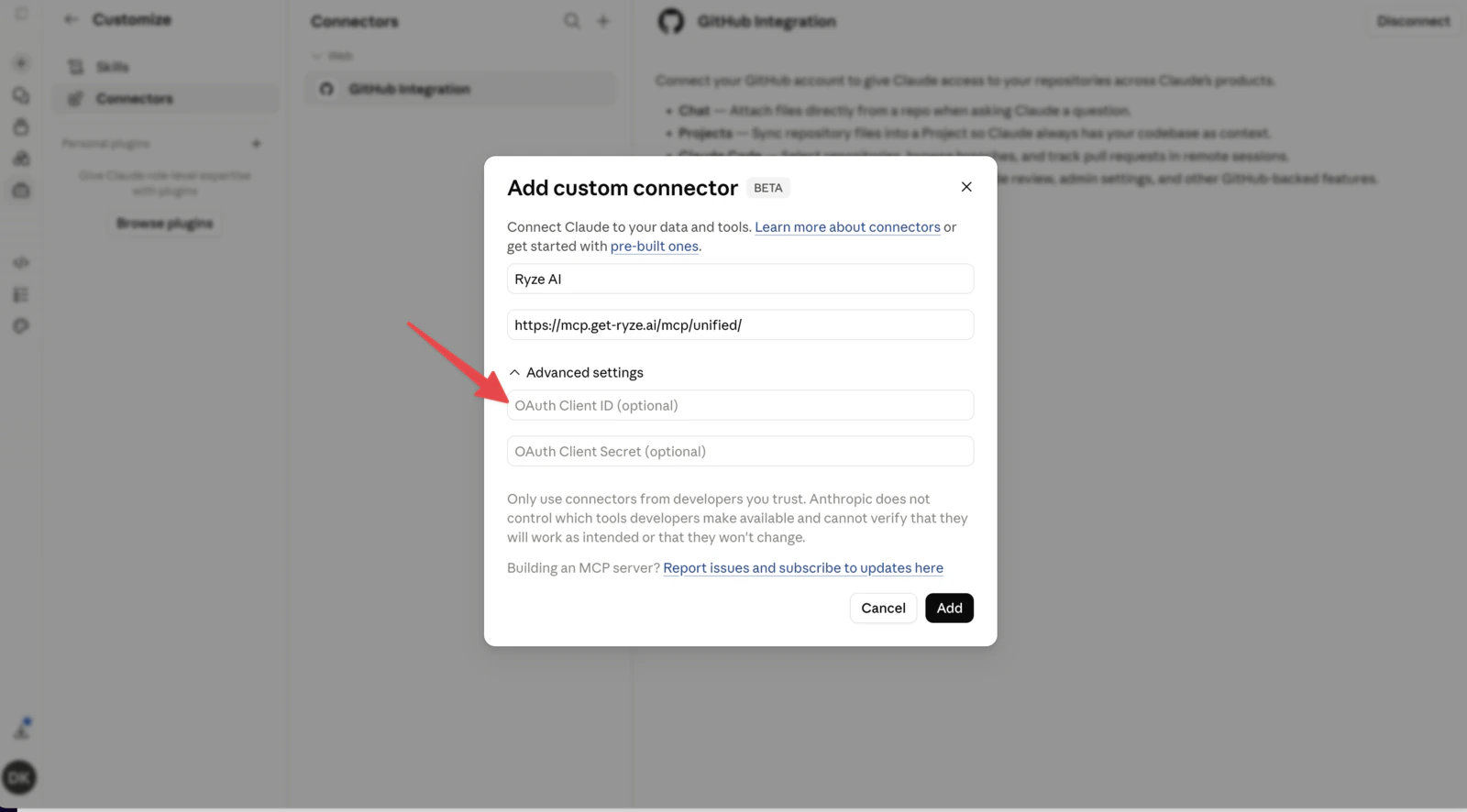
 Name it **Ryze AI** and paste the URL `https://mcp.get-ryze.ai/mcp/unified/`. Expand **Advanced settings** and paste your **connection key** into the **OAuth Client ID** field, then click **Add**.
 ## Step 3 — Verify it works
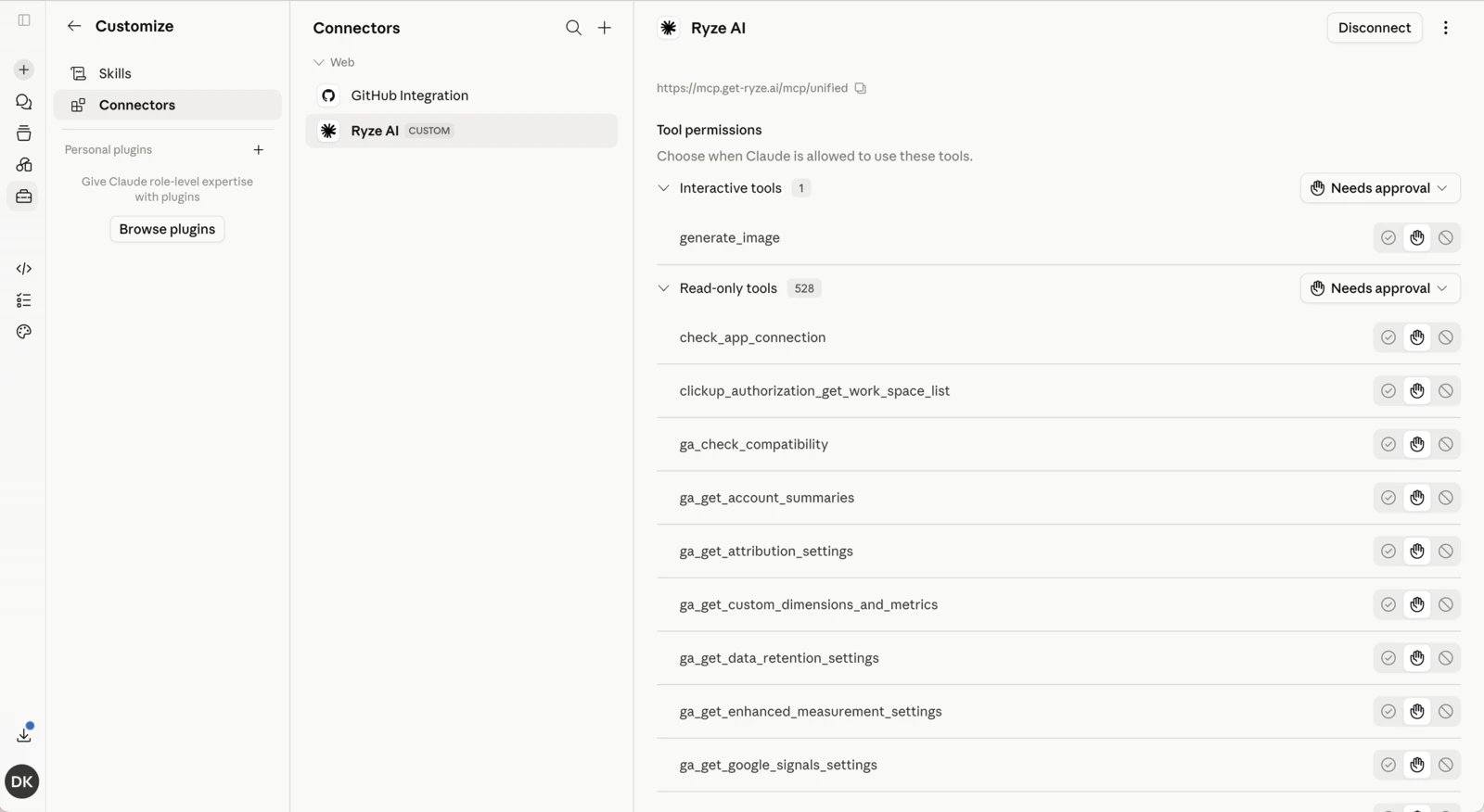
Open **Customize → Connectors** and select **Ryze AI**. A connected connector shows the Ryze URL and a long list of available tools.
## Step 3 — Verify it works
Open **Customize → Connectors** and select **Ryze AI**. A connected connector shows the Ryze URL and a long list of available tools.
 You can also test it in chat — ask Claude:
> list my ad accounts
If it returns your accounts, you're done. If it stalls, see the [FAQ](/connect/faq).
You can also test it in chat — ask Claude:
> list my ad accounts
If it returns your accounts, you're done. If it stalls, see the [FAQ](/connect/faq).